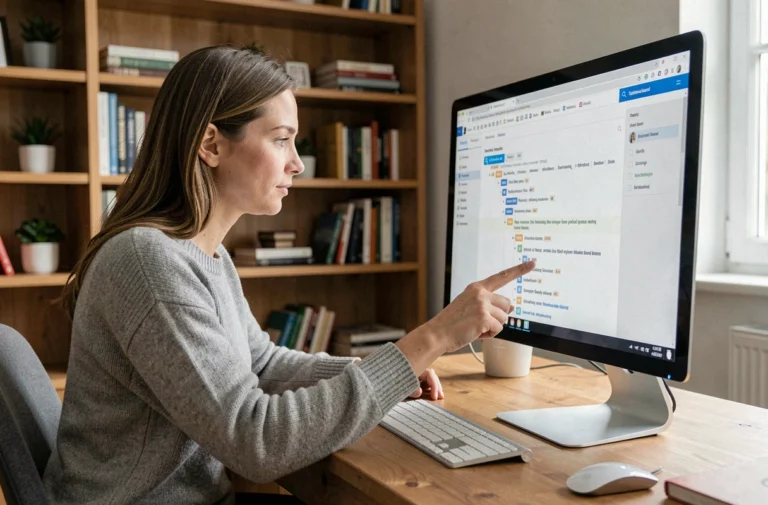
The Zimbra CD66 calendar shows the same events in the desktop browser and on a phone, but reminders don’t always sync. A recurring appointment created in webmail may appear incomplete on mobile, or a notification may never fire, depending on the client being used. The question is: which settings should you adjust to make sure every alert arrives at the right time, no matter which device you use?
Mobile sync and the Zimbra calendar: why reminders go missing
Zimbra calendar behavior varies depending on the version of the server in use. Zimbra regularly releases updates, and each version can change how events and reminders are sent to mobile clients. Before changing any settings, it’s worth checking which version CD66 is actually using.
Phone sync also depends on the protocol configured. ActiveSync, CalDAV, and EWS don’t handle reminders in the same way. An incomplete calendar on mobile is often a protocol issue, not a data-entry mistake. A recurring event created in CalDAV may display correctly in Thunderbird but lose its recurrence exceptions when synced to an Android phone via ActiveSync.
Knowing how to manage your calendar with Zimbra CD66 therefore means understanding this technical layer before changing notification preferences.
| Protocol | Mobile reminders | Recurring events | Shared calendars |
|---|---|---|---|
| ActiveSync | Sent to the native client; behavior depends on the phone | Exceptions sometimes ignored | Limited, depending on permissions |
| CalDAV | Handled by the third-party calendar app | Generally more reliable | Often read-only |
| Webmail (browser) | Browser pop-up; tab must remain open | Full display | Full access, depending on permissions |
This table summarizes how behavior differs by access method. Webmail remains the only channel where all reminders work predictably, provided you keep the tab active.

Configure Zimbra reminders so they actually arrive
A notification depends on three factors working together: the setting in Zimbra, the browser or phone’s permission, and the network connection at the time it’s due. It would be misleading to promise that an alert will work in every situation. It’s better to follow a verification process.
Test a reminder before relying on it
Create a test event scheduled for the next ten minutes. Check that the notification appears on every device you use regularly. If the pop-up doesn’t appear on mobile, the issue is either the sync protocol or the app’s notification permissions.
Testing a reminder on every device helps you avoid discovering a problem on the day of the appointment. This check takes less than two minutes and immediately pinpoints the cause of the silence.
Settings to check in Zimbra preferences
- In the Calendar tab of Preferences, the default reminder time applies to every new event. Set it to match your usual preparation time (five minutes for a video call, thirty minutes for travel).
- The email notification option sends a reminder email in addition to the pop-up. This backup is useful when the webmail tab is closed or the phone isn’t syncing alerts.
- For recurring events, check that each occurrence retains its reminder after you edit a single instance. Depending on the server version, Zimbra may reset reminders for occurrences that haven’t been edited.
You’ll find these settings under Preferences, then Calendar. Email notifications provide the most reliable safety net when mobile sync is uncertain.
Zimbra CD66 shared calendars: access rights and pitfalls after a job change
Shared calendars pose a specific challenge in an organization like CD66. When an employee changes department or role, their access rights to shared calendars aren’t updated automatically. They may still see a team calendar they no longer need, or lose access to their new department’s calendar without being notified.
Checking your shared calendars after any change of position or role should become a habit. Otherwise, an employee may rely on an outdated calendar or miss meetings with their new team for several weeks.
Identify the active calendars in your account
In the left pane of Zimbra webmail, the Calendar section lists all the calendars you can access. Each shared calendar shows the owner’s name and permission level (read-only, read-write, or full management).
After a transfer, review this list. Remove shares you no longer need to avoid visual clutter. Ask the manager of your new department to grant you access to its team calendar. A shared calendar without the right permissions shows free time slots where meetings are scheduled, undermining any attempt to plan effectively.
Recurring events in Zimbra: when repetition goes wrong
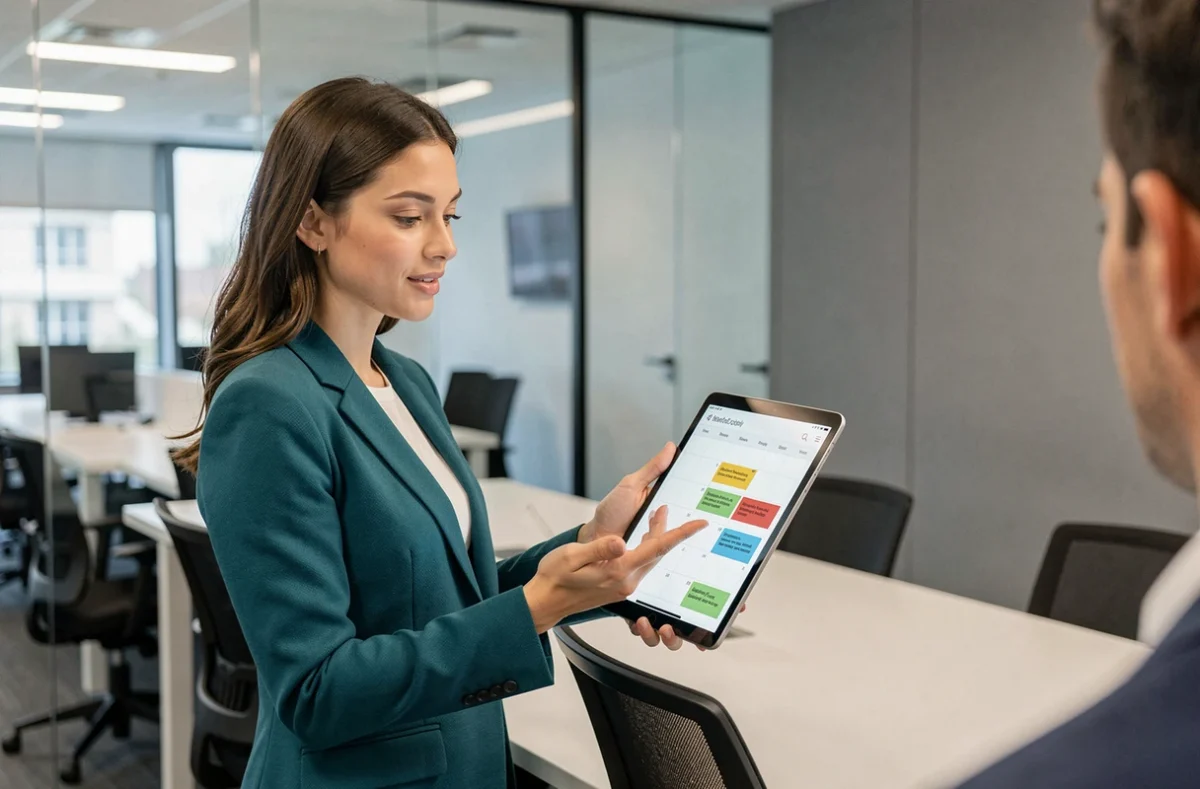
Recurring events (weekly meetings, monthly on-call shifts) are responsible for the most missed appointments. The problem isn’t with creating them initially, but with making changes later.
When you edit a single occurrence of a recurring event in Zimbra (change the time or add a participant), the server creates an exception. This exception may not sync correctly across all protocols. As a result, the edited occurrence appears at the right time in webmail, but the old time remains on a phone synced via ActiveSync.
The solution is to check your phone after every change to an occurrence. If the discrepancy persists, delete the recurring event from your phone and force a full calendar resync. This will recreate all occurrences with their exceptions up to date.
Editing a recurring occurrence in webmail and then checking it on mobile is still the safest way to avoid discrepancies. The Zimbra CD66 calendar works reliably as long as you account for these sync limitations. The starting point is always the same: identify the protocol used on each device, test reminders once, and review shared calendars whenever the organization changes.