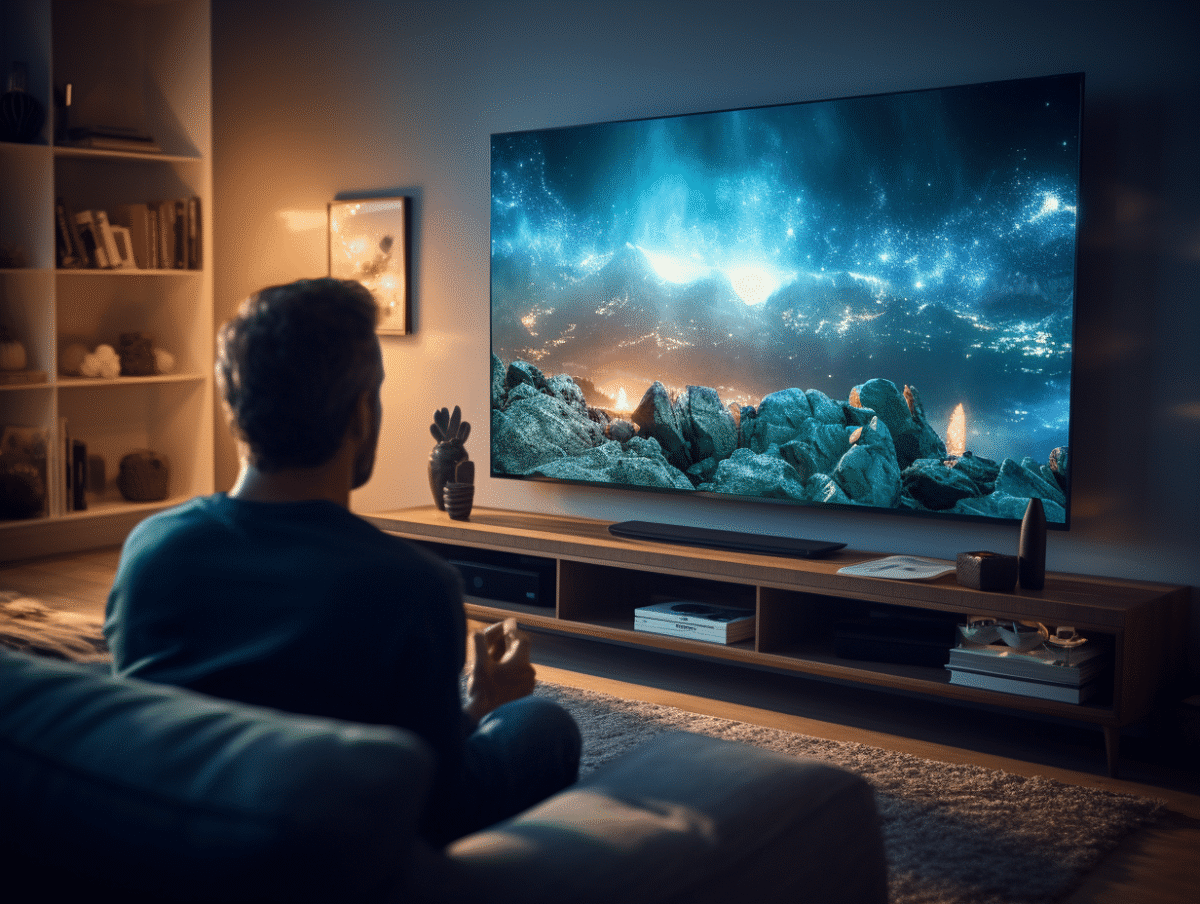
In a world where video streaming has become king, many are looking to enjoy their favorite shows and movies on a screen larger than that of their smartphone or tablet. Google’s Chromecast presents itself as a sleek and affordable solution to connect digital content to the television. This small, easy-to-use device allows you to wirelessly stream programs from various online services directly to your living room screen.
Practical Guide to Streaming Your Content on TV via Chromecast
Setting up your Google Chromecast is the first step to enjoying multimedia content on your television. Connect the device to the HDMI port of your TV and power it using the provided USB cable. Make sure that your Chromecast and your mobile device or laptop are connected to the same Wi-Fi network. Then download the Google Home app on your smartphone or tablet to perform the initial setup, following the on-screen instructions to connect to your home network.
Once the setup is complete, you can immediately start casting content from streaming services or Cast-compatible apps. Launch your chosen app such as Netflix, Disney+, or 6play with Chromecast and look for the Cast icon, a rectangle with Wi-Fi waves in the lower corner. By clicking on this icon, select your Google Chromecast from the available devices, and the chosen content will appear on your TV screen.
For web content, the Google Chrome browser on your computer offers a built-in casting feature. Open Chrome, navigate to your desired site, and click on the three-dot menu in the upper right corner of the window. Select ‘Cast’ and choose your Chromecast to project the current tab onto your TV. This feature is particularly useful for viewing videos that are not available on mobile apps or for sharing presentations and photos.
For subscribers of certain services, such as the Orange TV App, it is entirely possible to cast live TV channels to your television via Chromecast. Ensure that the app is updated and look for the Cast icon to select your Chromecast device. You can then enjoy your favorite TV channels without needing to go through a traditional decoder.
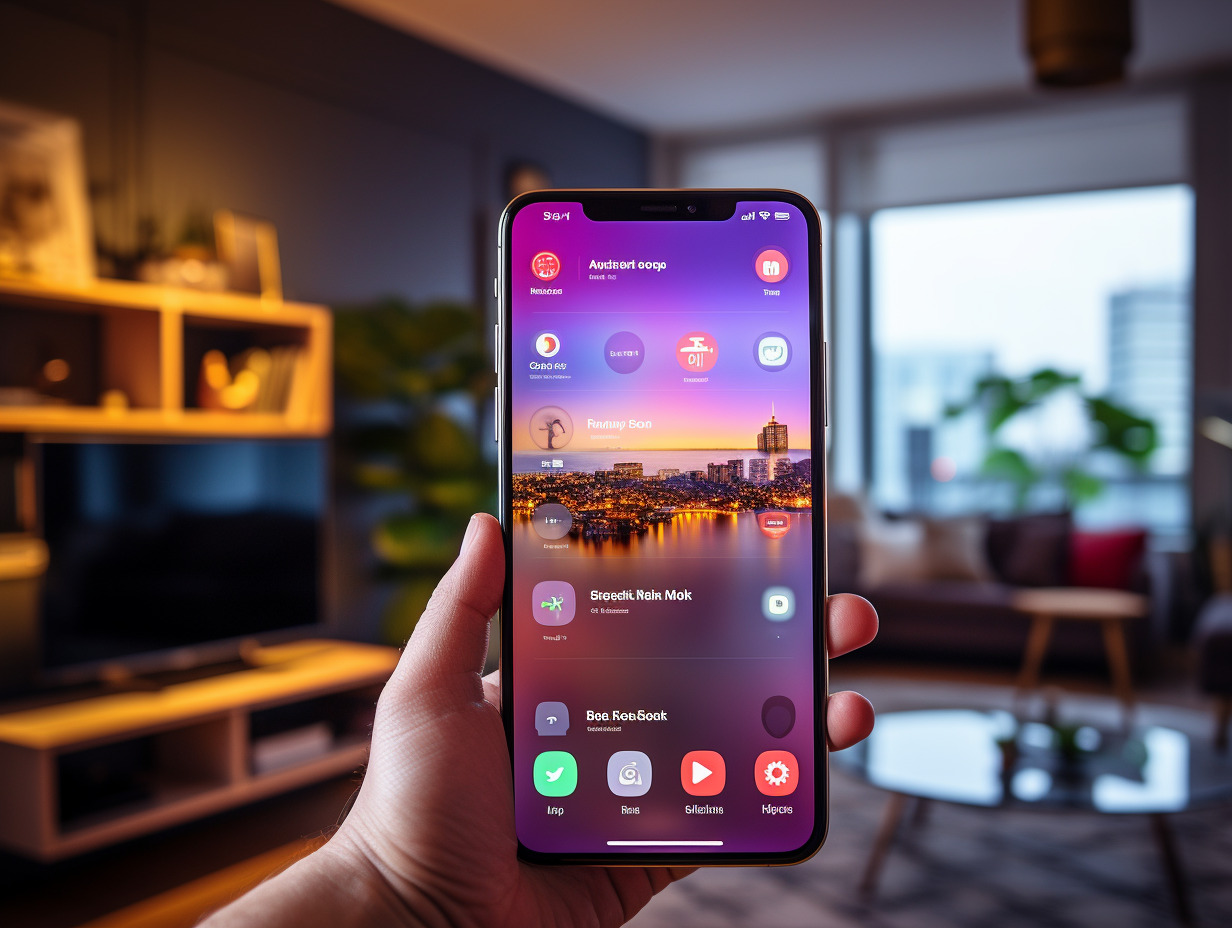
Optimize Your Streaming Experience with Chromecast: Installation and Use
The wireless Cast technology built into Google Chromecast allows for smooth and easy transmission of multimedia content. To benefit from the best possible image quality, ensure that your device is compatible with the HDR standard and the AV1 video codec, which guarantees an optimal viewing experience. The Chromecast connects to your TV via a HDMI cable, which is simple to plug in and convenient for quick installation.
Once the device is in place, Google Assistant proves to be a valuable ally for users wishing to control their streaming by voice. Pair the Chromecast with your Livebox or any other internet access, even via mobile hotspot, and launch or control the desired content without leaving your couch. If your main connection is down, using an Airbox or sharing your smartphone’s connection can provide an alternative to maintain access to your favorite content.
For Apple device owners, Chromecast is also a practical solution, although AirPlay technology is often preferred by them. Whether you have an iPhone, iPad, or MAC, you can still connect your smartphone or computer to your Chromecast using the Wi-Fi network to cast various content, ranging from video platforms to video games. Take advantage of a discount at Amazon to acquire your Chromecast at a reduced price and transform your television experience.